Documentation
How to use cut2.link
Everything you need to know, with explanations of why each feature exists and when to use it.
Create short links
FreeA short link turns a long, unreadable URL into a short, memorable address. Printable, speakable, and more trustworthy. The slug (the part after the slash) can be auto-generated or set manually. A custom slug like cut2.link/summer-sale matters especially when you use the link in print, presentations, or spoken form.
- 1.
Enter URL & create
Paste your long URL into the input field at the top of the dashboard. Click Create link. You instantly get a short link like cut2.link/x7k2m.
- 2.
Set custom slug (optional)
Under More options, enter your own slug, e.g. summer-sale. Your link becomes cut2.link/summer-sale instead of cut2.link/x7k2m.
- 3.
Add internal title (optional)
Under More options, enter a title, e.g. Summer Sale Instagram. Only you see it. Helps navigate the dashboard when you have many links.
- 4.
Copy & share
Click Copy in the link row. The short link is in your clipboard. Paste it into your Instagram bio, newsletter, or presentation.
QR-Codes
FreeQR codes bridge online links into the physical world: business cards, product packaging, posters, menus, trade show booths. The key advantage over a static QR code: the code always points to the short link (cut2.link/your-slug), not directly to your target URL. If your website address changes, you update the target in the dashboard. The QR code stays the same, no reprinting needed.
- 1.
Download QR code
In the link row in the dashboard, click the QR button. A PNG (400x400 pixels) downloads immediately.
- 2.
Test before printing
Test the QR code with at least two different phones (iOS and Android) before printing.
- 3.
Large format printing
400x400 pixels is enough for business cards. For posters or exhibition material, scale the PNG to 1000x1000 px. QR codes scale without quality loss. For vector data use the SVG download via the API.
Tip: The QR code stays valid even when you change the link target. That's the most important difference from a regular QR code generator.
Edit links
FreeAfter creating, you can edit any link at any time. Tags help you sort links by campaign or channel. Scheduling makes links active or inactive on a timer, useful for promotions with fixed durations. The link type determines how the link is displayed on a bio page. UTM parameters (Pro/Business) append invisible tracking information to the target URL so you can see in Google Analytics or similar tools exactly where a visitor came from.
- 1.
Open edit form
Click Edit in the link row. A form expands directly below. You don't leave the page.
- 2.
Add tags
Enter multiple tags comma-separated: instagram, summer, sale. Tags appear visibly in the link row.
- 3.
Set scheduling
Active from: date and time when the link becomes active. Expires at: date and time when it automatically deactivates. Both fields are optional.
- 4.
Choose link type
Shortlink is the default. Choose YouTube or Spotify when the link points to those platforms and should appear as an embedded player on a bio page.
- 5.
Set UTM parameters (Pro/Business)
Enter source (e.g. instagram), medium (e.g. story), campaign (e.g. summer-sale), content (for A/B tests). Parameters are automatically appended to the target URL.
- 6.
Enable noIndex (Pro/Business)
Toggle Search engines block. Google will not index the short link, only your target page.
- 7.
Set password (Pro/Business)
Enter a password. Visitors must enter the password before being redirected.
- 8.
Save
Click Save. Changes take effect immediately. All existing short links use the updated target.
Bio pages
FreeInstagram, TikTok and other platforms only allow one link in the bio. A bio page solves this: you link once to cut2.link/@your-name, and there visitors find a page with all your important links, webshop, podcast, YouTube, newsletter, contact. Design, colors and content are fully customizable. YouTube and Spotify links can be embedded directly as players.
- 1.
Create bio page
In the dashboard click Bio Pages, then Create bio. Enter a slug (becomes your address: cut2.link/@your-slug) and a title.
- 2.
Add links and headers
Click + Link: enter title and URL. Use + Header to add section headings, e.g. My Videos. Reorder by drag-and-drop.
- 3.
Embed YouTube and Spotify links
Add a link, set link type to YouTube or Spotify. The bio page then shows an embedded player.
- 4.
Customize design
Choose a theme: Dark, Light or Cyan. Under Custom colors freely set background, text, accent and card. Enter an avatar URL for your profile picture.
- 5.
Activate social icons
Display Instagram, TikTok, YouTube, X/Twitter, LinkedIn and GitHub as an icon row. Enter each profile URL.
- 6.
Remove branding (Pro/Business)
Toggle Remove branding under bio settings. This removes the powered-by notice at the bottom of the page.
- 7.
noIndex and password (Pro/Business)
Under Pro Features: Block search engines prevents Google indexing. Password protection shows a password gate before the page.
- 8.
Add link to Instagram bio
The bio page is instantly live at cut2.link/@your-slug. Put this link in your Instagram bio (or other platforms).
Tip: If you have your own website, enter its URL in the Website URL field. This sets a canonical tag and prevents Google from indexing your bio page instead of your real website.
Email collection
ProSocial media algorithms can change at any time. Your email list belongs to you. Collecting emails on your bio page builds a direct connection to your audience that is independent of Instagram, TikTok & co. The email form appears automatically below your links. Each address can only subscribe once.
- 1.
Activate Pro plan
Email collection is available from the Pro plan. Upgrade under Dashboard > Billing.
- 2.
Enable the feature
In the bio page editor scroll down to Pro Features and toggle Enable email collection.
- 3.
View subscribers
In the bio page editor scroll down to the Subscribers section. All emails with subscription date are listed there. Individual entries can be deleted.
- 4.
Export subscribers
Under Settings > Data export, download all data as JSON, including subscribers. Import the JSON into Mailchimp, Brevo or another newsletter tool.
Analytics
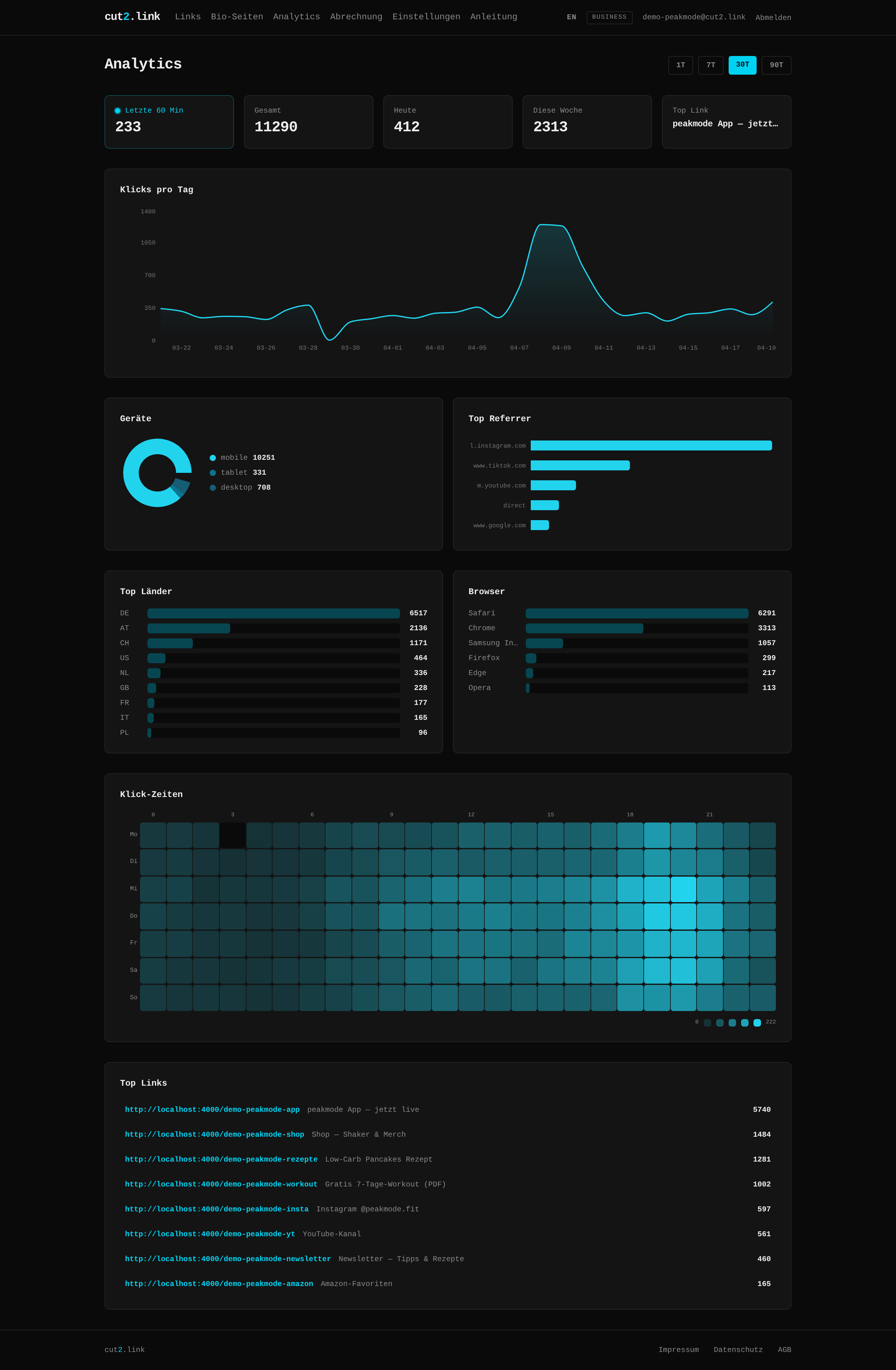
FreeEvery click on your short links is recorded: timestamp, device (mobile/desktop), browser, country and referrer (where the click came from, direct, Google, Instagram, etc.). IP addresses are not stored. The data shows you which campaign, platform and day of the week drives the most traffic to your link. Free plan: 30 days history. Pro: 365 days. Business: unlimited.
- 1.
Open Analytics
Click Analytics in the dashboard. Select a link from the dropdown at the top.
- 2.
Choose time range
Switch between 7, 30, 90 days (Pro: 365 days, Business: all data).
- 3.
Read click trend
The chart shows clicks per day. Traffic peaks can be directly attributed to campaigns or posts.
- 4.
Check devices, countries and referrers
How many visitors come from mobile? From which countries? Via which platform? This data helps optimize your landing page and campaign strategy.
Plans & billing
cut2.link offers three plans: Free (no cost) with 25 links, 1 bio page and 30 days analytics, no credit card needed. Pro (9 EUR/month) with unlimited links, API access, email collection and UTM parameters, for active creators and marketers. Business (29 EUR/month) with everything unlimited and 5 custom domains, for teams and agencies. Billed monthly via Stripe, no minimum contract.
- 1.
Upgrade
Dashboard > Billing > select plan. Payment via Stripe (credit card, SEPA). Upgrade is active immediately.
- 2.
Cancel
Dashboard > Billing > Cancel subscription. The subscription ends at the close of the current billing month. All features remain available until then.
- 3.
Data export (GDPR Art. 20)
Settings > Data export. All your data as JSON: account, links, bio pages, subscribers. Portable to another service at any time.